
If ZappySys PowerPack components are not showing in the SSIS Toolbox, this guide explains the most common causes and how to fix them quickly.
- Installation issues occurred, or the required runtime options were not selected during setup (reinstall may be required).
- The correct TargetServerVersion is not set (Visual Studio 2015+).
- You did not expand the Common section in the toolbox, or you did not check the Data Flow tab.
How to Fix Missing ZappySys Components in SSIS Toolbox
1. The fastest fix is to uninstall the current ZappySys SSIS PowerPack from Control Panel (Control Panel -> Add/Remove Programs -> Uninstall SSIS PowerPack), reinstall using Typical (Default) settings, and then verify the components in Visual Studio. If the issue persists, continue with the troubleshooting steps below.
2. Before moving to the solutions below, let's quickly search for installed DLLs. Check the folder for your target SQL Server version. For example, search for ZappySys*.dll in \Program Files (x86)\Microsoft SQL Server\140\DTS\... folder. These DLL files are used for SQL Server 2017 - SSIS Toolbox/designer items.
NOTE: The screenshot may not show all possible DLL versions. Depending on your system installation, you may see more or fewer files.
File to check for SSIS/SQL Server 2025
{drive:}\Program Files (x86)\Microsoft SQL Server\170\DTS\Tasks\ZappySys.PowerPack170.dll
File to check for SSIS/SQL Server 2022
{drive:}\Program Files (x86)\Microsoft SQL Server\160\DTS\Tasks\ZappySys.PowerPack160.dll
File to check for SSIS/SQL Server 2019
{drive:}\Program Files (x86)\Microsoft SQL Server\150\DTS\Tasks\ZappySys.PowerPack150.dll
File to check for SSIS/SQL Server 2017
{drive:}\Program Files (x86)\Microsoft SQL Server\140\DTS\Tasks\ZappySys.PowerPack140.dll
File to check for SSIS/SQL Server 2016
{drive:}\Program Files (x86)\Microsoft SQL Server\130\DTS\Tasks\ZappySys.PowerPack130.dll
File to check for SSIS/SQL Server 2014
{drive:}\Program Files (x86)\Microsoft SQL Server\120\DTS\Tasks\ZappySys.PowerPack120.dll
If files are not found in the correct directory, your installation may be corrupted, and you may need to reinstall.
Option 1: Reinstall ZappySys PowerPack (Recommended First Step)
Download the latest installer for trial users or licensed users. Then reinstall SSIS PowerPack with the correct settings.
A few things to verify: Use the 64-bit installer on a 64-bit OS. During installation, choose the Custom option and ensure the required runtimes are selected (32-bit for toolbox/designer integration; 64-bit for SSIS Server Runtime / dtexec command-line execution). In most cases, you won't have to change any default settings. In rare cases, you may need to select options manually if auto-detection does not detect your setup correctly.
NOTE: We added support for SSIS 2022 in version v5.1, and for SSIS 2025 and later in version 6.0.0.
Option 2: Expand the Common Section in SSIS Toolbox
Some customers did not see components because the SSIS Toolbox Common section wasn't expanded.
Option 3: Check Components in the Data Flow Tab
Some customers were unable to locate Data Flow-specific items (e.g., JSON Source) because they were on the Control Flow tab. To see Source / Target / Transform components, look under the Data Flow tab.
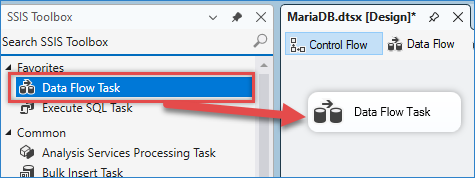
It will refresh the SSIS Toolbox when you go to Data Flow.
Option 4: Set the Correct TargetServerVersion (VS 2015+)
In some cases, changing TargetServerVersion refreshes the toolbox and makes components appear.
- Launch Visual Studio (VS 2015 or higher).
- Create or open your existing SSIS Solution.
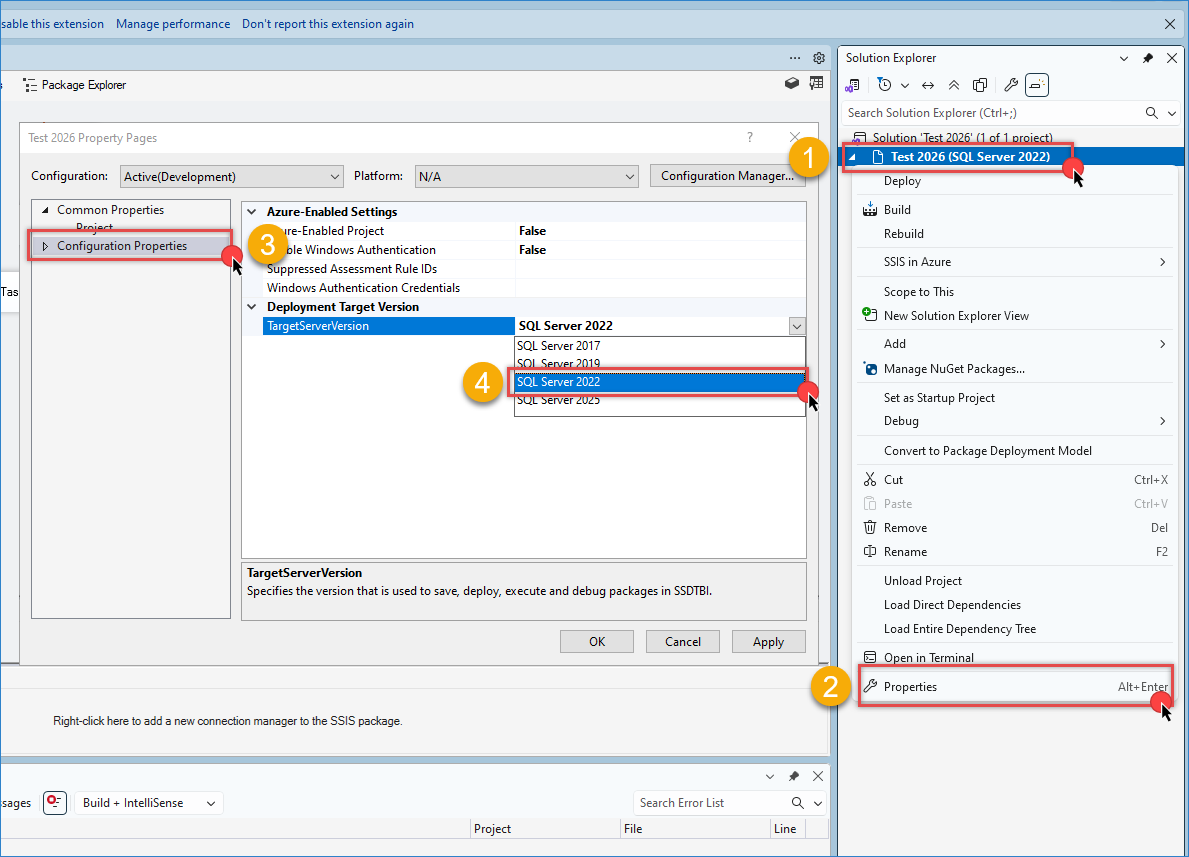
- In Solution Explorer, right-click the SSIS project node and click Properties (this node may be one level below the solution node, as shown in the screenshot below).
- In Properties, select Configuration Properties. Change TargetServerVersion to a specific version other than Next. Click Yes if you see a downgrade warning, then click OK.
Option 5: Use Custom Setup and Select 64-bit Runtime (VS 2022)
If you are using SSIS Designer in Visual Studio 2022, there is a known runtime detection issue because VS 2022 is 64-bit (while previous VS versions are 32-bit). To add ZappySys components to the VS 2022 toolbox, choose Custom Installation and manually select both 64-bit and 32-bit runtimes when needed.
1. Run SSIS PowerPack Setup. If prompted, ignore the warning about no SSIS Runtime/Designer detected.
2. Choose Custom Setup.
3. Configure Runtimes for Your Visual Studio Version(s)
Check the runtimes you need based on your environment:
VS 2022 Users: Must check the 64-bit runtime.
VS 2019 & Older Users: Must keep the 32-bit runtime checked.
Note: If you use both versions on this PC, ensure both 32-bit and 64-bit are selected.
💡 Important Note for Mixed Environments (e.g., VS 2019 + VS 2022):
If you are using both Visual Studio 2019 and Visual Studio 2022 on the same computer, do not uncheck the 32-bit runtimes during the custom setup phase.
Visual Studio 2019 relies entirely on the 32-bit runtime to display and execute SSIS PowerPack components. To ensure components load successfully in both IDE versions, make sure both the 32-bit runtimes (for VS 2019) and the 64-bit runtimes (for VS 2022) remain selected before finishing the installation.
Option 6: Advanced Troubleshooting Steps
If none of the above steps helped, try the additional troubleshooting guide below.
https://zappysys.com/forums/topic/troubleshooting-ssis-powerpack-installation-issues/
Option 7: Contact ZappySys Support Team
If you're still having trouble, we are here to help. Contact ZappySys Support via ticket or live chat.
Contact Us
If you have more questions, feel free to contact us via Live chat or email at support@zappysys.com
Comments
0 comments
Article is closed for comments.