
How to enable detailed logging in ZappySys SSIS PowerPack
Sometimes its useful to see more details in the error/execution log. Secure FTP Task (SFTP) is very common usecase for such scenario to see detailed log.
To enable detailed logging in SSIS PowerPack Task/Component perform the following steps.
- Double click ZappySys SSIS PowerPack Task/Component
- Goto General Tab.
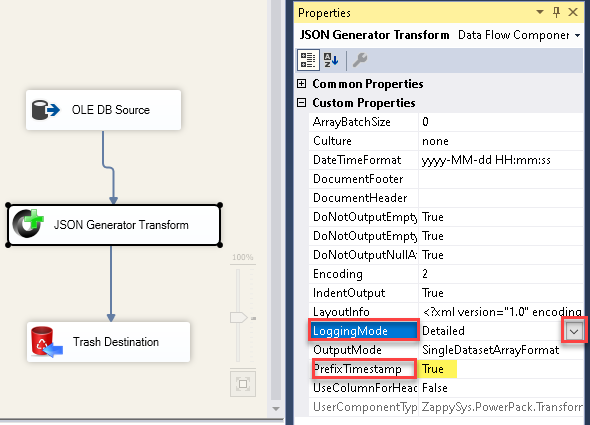
- Change LoggingMode=Detailed
- Change PrefixTimeStamp=True (This allows to see how long each step took in log entry)
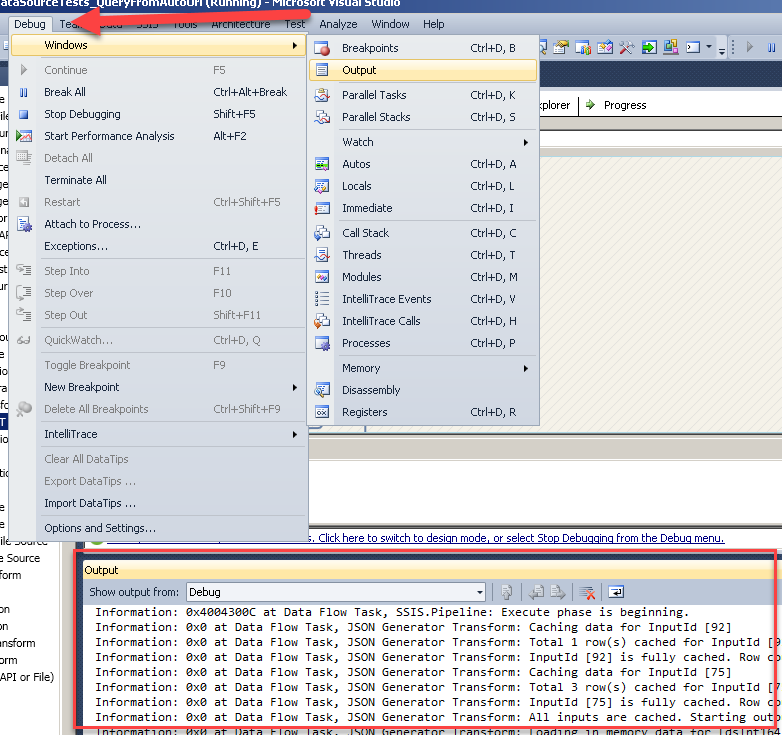
- Now right click on the Task icon and click Execute to test and obtain full log in the output window.
- If output window is not visible then Click on the Debug Menu > Windows > Output
- Copy Log to clipboard. For more information check this KB
See below How to enable full logging.
For Task
For Data Flow Component
Right click on Component in Designer > Choose "Properties"
Open Output Window
Contact Us
If you have more question(s) feel free to contact us via Live chat or email to support@zappysys.com
Comments
0 comments
Please sign in to leave a comment.