
Problem:
Many times when you add existing SSIS Package (DTSX file) to your Project, or try to Import project from SSISDB Catalog using NEW > Project >Integration Services Import Project Wizard option in SSDT, you may get below error.
The task with the name "???????????" and the creation name "SSIS.ReplacementTask" is not registered for use on this computer.
Contact Information:
REST API Task; ZappySys LLC (c) All Rights Reserved; SSIS PowerPack; http://www.zappysys.com/support
Possible Cause:
SSIS Upgrade Engine cannot locate Task dlls for Original version. For example you are trying to add SSIS 2012 Package to Project with TargetVersion SQL Server 2017 and you dont have ZappySys dlls in the following Folder C:\Program Files (x86)\Microsoft SQL Server\110\DTS\Task that means you dont have either SSIS 2012 designer installed or you dont have SSIS PowerPack installed for that version. If folder is missing that means you don't have SSIS Designer installed. Download correct SSDT BI from here.
For SSIS 2012 = C:\Program Files (x86)\Microsoft SQL Server\110\DTS\Task
For SSIS 2014 = C:\Program Files (x86)\Microsoft SQL Server\120\DTS\Task
For SSIS 2016 = C:\Program Files (x86)\Microsoft SQL Server\130\DTS\Task
For SSIS 2017 = C:\Program Files (x86)\Microsoft SQL Server\140\DTS\Task
For SSIS 2019 = C:\Program Files (x86)\Microsoft SQL Server\150\DTS\Task
Solution:
There are two ways you can fix this error.
Method-1:
Change your source package to correct version by changing TargetVersion in the project from where you copying SSIS package. This way Source Project is same TargetVersion as Target Project where package is being imported. Once both project has same version Upgrade process is not executed.
NOTE: Latest version of SSDT for VS 2017 (v 15.8.1 or later) doesn't include SQL Server 2012 Support. To Open packages designed in SSIS 2012 format you must use SSDT for VS 2015 or (SSDT 15.8.0 or lower). After you install SSDT you must re-install SSIS PowerPack.
Method-2:
Change Target Project TargetVersion to same version as source package version.
Method-3:
If you are importing project from SSIS Server using Integration Services Import Project Wizard option in Visual Studio and you faced Package Corruption then try below workaround.
Basically, rather than Importing from Server, first try to export ispac file via SSMS to local disk and then use Import Wizard option to read local deployment file in Visual Studio.
Here are Steps.
- Open SSMS > Connect to SQL Server where SSISDB is located
- Expand to your SSIS Project. Right click on Project Node and click Export
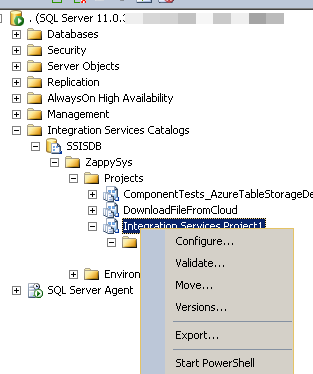
- This will save as ispac file (SSIS Deployment File)
- Now go to Visual Studio (i.e. SSDT).
- Click NEW > Project >Integration Services Import Project Wizard option
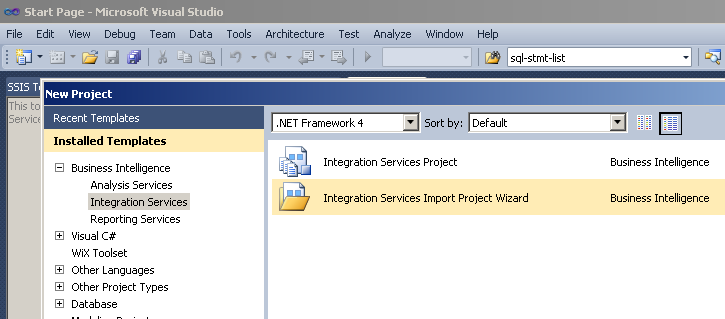
- On the second screen select Import Project Deployment File option if its not default
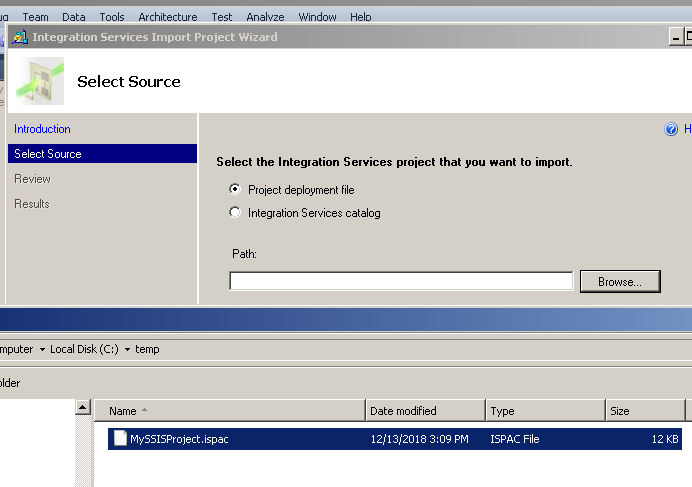
- Choose file we exported in previous step.
- Click Import to finish the wizard
- After Import Process make sure to change TargetServerVersion
Hope this method works for you and you should not get error.
Contact Us
If you have more question(s) feel free to contact us via Live chat or email to support@zappysys.com
Comments
0 comments
Please sign in to leave a comment.